Git & GitHub
From Zero to Your First Push
“Learn version control step by step”
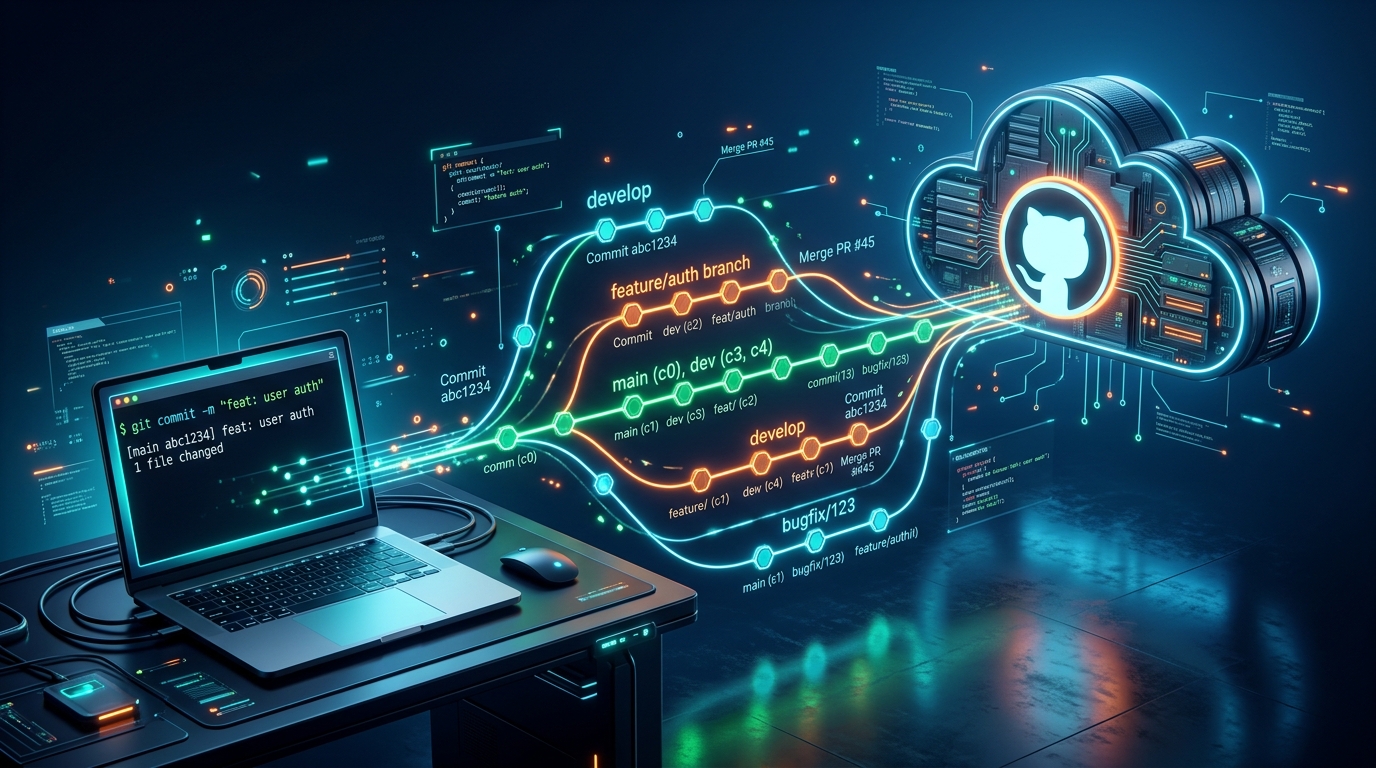
What Are Git and GitHub?
Understanding the difference between the tool and the platform
Git (The Tool)
Git is a version control system that runs locally on your computer. It tracks changes to files and allows developers to manage project history completely offline.
GitHub (The Cloud Platform)
GitHub is a cloud hosting service for Git repositories. It provides a web interface, team collaboration, code reviews, and remote backups.
Why Do We Need Git?
Solving the everyday chaos of software development
Life Without Git
- Accidentally deleting working code with no undo
- Losing earlier working versions permanently
- Not knowing who broke a feature or when
- Painful file naming madness:
Life With Git
- Single clean folder: No duplicate zipped copies
- Time machine: Jump to any commit in history
- Detailed attribution: Every change has an author and timestamp
- Safe experiments: Try features in isolated branches
- Team harmony: Merge contributions smoothly
Git Vocabulary
The essential glossary every developer uses daily
| Term | Plain English Meaning | Context |
|---|---|---|
Repository |
A project folder tracked by Git containing your code and history | Local or Remote |
Commit |
A saved snapshot of staged changes with a unique ID and message | Local |
Branch |
An independent line of development to build features safely | Local & Remote |
Remote |
The version of your repository hosted on the internet (e.g. GitHub) | Remote |
Origin |
The default nickname Git gives to your main remote repository URL | Remote |
Push |
Upload your local commits to the remote repository on GitHub | Local Remote |
Pull |
Download and integrate new changes from the remote to your local machine | Remote Local |
Clone |
Download a full copy of an existing remote repository to a new local folder | Remote New Local |
Stage |
Prepare and mark specific files to be included in the next commit snapshot | Local |
Check if Git Is Installed
Verifying your terminal environment before starting
git version 2.x.x) is printed, Git is successfully installed on your machine!What If Git Is Not Installed?
If your terminal responds with command not found: git, download and install it for your operating system:
- macOS: Run
xcode-select --installor install via Homebrew:brew install git - Windows: Download from git-scm.com (includes Git Bash)
- Linux (Ubuntu/Debian):
sudo apt install git
Basic Git Configuration
Introducing yourself to Git so your commits are attributed to you
Why Does Git Need This?
These values are stamped onto every commit you create as the commit author. Collaborators and GitHub use this email to associate commits with your GitHub profile.
Git local identity (name/email) and GitHub authentication (passwords/tokens/SSH keys) are related, but not the same thing.
Create a New Project
Setting up a fresh folder and initial files in the terminal
Resulting Folder Structure
What Just Happened?
mkdircreates a new empty folder namedmy-projectcdmoves our terminal inside that directoryecho ... > README.mdcreates our first markdown file
Initialize Git
Transforming a standard folder into a version-controlled repository
The Hidden .git Directory
.git holds all branches, commit snapshots, and Git configuration. Never manually edit or delete this folder!git status
Your most important diagnostic command in Git
What Does Untracked Mean?
Untracked = Git sees the file, but it is not being tracked yet.
Any changes you make to an untracked file will not be recorded until you explicitly tell Git to track it using git add.
git status. Git usually prints helpful suggestions!git add
Selecting and preparing files for the next snapshot
Why Have a Staging Area?
Staging acts like a buffer. If you modified 5 files but only want 2 of them in this commit, staging allows you to craft precise, clean commits.
Check the Staged Changes
Verifying that files moved into the staging area
Green Means Staged!
Notice the color change: README.md is now listed under Changes to be committed in bright green.
This confirms the file is successfully staged and waiting to be permanently captured by git commit.
README.md now, the new edits won't be staged until you run git add again!Create Your First Commit
Capturing a permanent snapshot of your staged files
-m flag allows you to provide a short, descriptive commit message right from the command line.The 3-Tier Local Git Pipeline
git addgit commitView Commit History
Browsing your project timeline with git log
What Is a Commit Hash?
A commit hash (e.g. a1b2c3d) is a unique 40-character SHA-1 checksum that cryptographically identifies that exact snapshot and state in time.
You only need the first 7 characters to reference any commit in Git commands.
What Is a Branch?
Creating isolated sandboxes for new features without breaking production
main branch.Why Developers Use Branches
- New features: Develop isolated features without breaking existing code
- Bug fixes: Patch urgent bugs quickly without mixing unfinished work
- Experiments: Try radical code changes; delete the branch if it fails
- Team development: Multiple engineers build features concurrently without stepping on toes
Create and Switch Branch
Modern branch management syntax in Git
Older Equivalent Command
In older tutorials or blog posts, you will often see:
git checkout -b feature/login
git checkout had too many conflicting responsibilities (switching branches AND discarding file changes). Git introduced git switch in version 2.23 to be dedicated, clear, and beginner-friendly.
Git Command Cheat Sheet
Quick reference of the most vital commands
| Command | Purpose | Where It Operates |
|---|---|---|
git init |
Initialize a new local repository | Local |
git status |
Inspect working directory and staged file changes | Local |
git add . |
Stage all current changes for the next commit | Local |
git commit -m "msg" |
Save a permanent snapshot of staged files | Local |
git push |
Upload commits to remote GitHub repository | Local Remote |
git pull |
Download and merge changes from GitHub to local | Remote Local |
git clone URL |
Download an entire existing repository locally | Remote Local |
git log |
View commit history timeline | Local |
git branch |
List all local branches | Local |
git switch <branch> |
Switch to an existing branch | Local |
git remote -v |
View all configured remote repository URLs | Remote |
Mistake: Forgetting to Commit
Why running git add then git push doesn't upload your changes
git push only uploads commits! Staged files that are not committed yet will never be pushed.What Is .gitignore?
Preventing junk, generated files, and secrets from entering your repository
Why Is This Essential?
A .gitignore file is placed in the root of your project. Git will intentionally never track files matching these patterns.
Files like
.env containing API keys, database passwords, or auth tokens must always be in .gitignore.
Example Project Structure
Visualizing what gets tracked vs what stays local
Why Is node_modules/ Ignored?
In Node.js projects, node_modules/ can contain hundreds of thousands of downloaded package files and weigh gigabytes.
Anyone cloning your repository can reproduce the entire folder instantly by running pnpm install using the committed package.json.
The Mental Model
The four architectural layers of Git and how data travels between them
git push (Upload) | ▼ git pull (Download)git commitgit addWhy This Mental Model Matters
When you understand these 4 distinct layers, Git errors stop being mysterious.
You always know:
- Where your changes currently live
- Which command moves them to the next level
- Whether a change is local or shared remotely
Your First GitHub Project
A step-by-step practical drill for every student
Exercise Objective
Create a project called hello-git and publish it to your GitHub profile.
hello-git and enter itREADME.md containing # Hello Gitgit initgit add . & git commit -m "Initial commit"hello-git-u origin mainFinal Summary
The foundational principles to carry forward in your developer journey
Git
Tracks your project history, snapshots, and branches locally on your computer.
GitHub
Hosts your Git repositories online, enabling cloud backup, sharing, and team collaboration.
The Core Workflow
Questions?
“Happy coding”
You just mastered version control basics!
You now know how to install Git, initialize a local project, stage, commit, create a GitHub repo, connect remotes, and push your code with confidence.
Next Steps to Explore
- Practice feature branches and merging
- Open your first Pull Request on GitHub
- Explore open-source projects and contribute